Showing posts with label Windows. Show all posts

Wednesday, 2 October 2013

Open a command prompt in the current directory

Type "cmd" in the address bar

This has been blogged elsewhere, but I was *so* amazed to see this that I needed to share it. All credit goes to Tom (@photomoose) for doing this while I was watching.


If you have Windows Explorer open and need a command prompt in that directory:

Go to the address bar, remove the directory name and enter "cmd"


Press enter, and voilĂ , your command prompt, initialised to the current directory.


Shift-Right Click

Thanks to John (@imaji) for this tip.

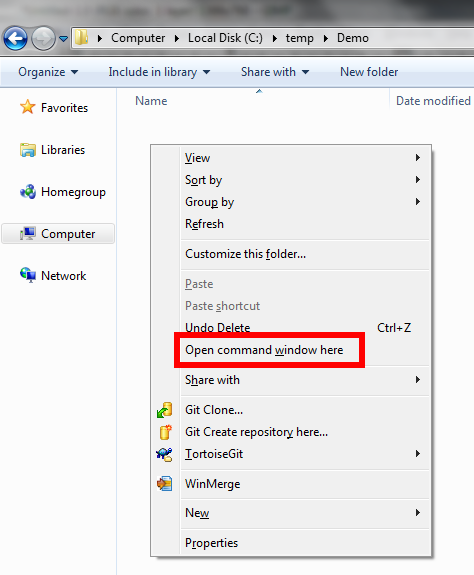
If you hold Shift and right-click in Windows Explorer, you get an item added on the popup menu. The non-shift version looks like this:


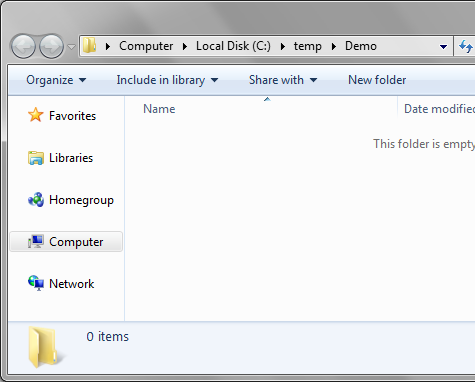
But with shift held down, you get this:


Wednesday, 10 October 2012

Caller Information Attributes

Version 4.5 of the .Net framework introduces 3 new attributes in the System.Runtime.Compiler namespace. These are CallerFilePathAttribute, CallerLineNumberAttribute and CallerMemberNameAttribute. They are used to obtain information about the caller to a method, and are handy for tracing call flow for diagnostics. The CallerMemberNameAttribute is also particularly useful when calling a PropertyChanged method, if your class implements INotifyPropertyChanged.

A quick code example shows the usage ( all code here is available as a GitHub:Gist)
The output from this demo is:
The new attributes are at lines 20, 21 and 22 of the code. As you can see in the example, to use one of the attributes, it must be used to decorate an optional parameter on a method - the parameter will be set to the correct value at runtime.

INotifyPropertyChanged Usage

One major benefit of the CallerMemberNameAttribute is in a class that implements the INotifyPropertyChanged interface. This interface has an event in the form of PropertyChanged(string propertyName), and will be called from each property's setter method when the value changes. This leads to a lot of magic strings in code, for example:
This brittle code can be avoided by using the attribute like this:

What members does it work with?

As well as methods, properties and events, the attributes will work for these member types:
  • Constructor, value is ".ctor
  • Explicit conversion operator, value is "op_Explicit"
  • Implicit conversion operator, value is "op_Implicit"
  • Indexer, value is "Item"
  • Operator overload, value is e.g. "op_Addition"
  • Finaliser, value is "Finalize"

Where does the info come from?

The attributes work by inspecting the IL of the calling code. For instance, the IL for the Main() method of my first example contains these items of info:

As I said before, all code here is available as a GitHub:Gist
Sunday, 16 September 2012

Custom Key Combinations for Swapping Windows Keyboard Language

Occasionally I pair program with a developer who uses a Mac keyboard with his Windows machine. In order to use the Mac keyboard accurately, his default keyboard language is English (US). Although there's also a regular UK windows keyboard plugged in and ready to use, it requires time and effort to navigate the mouse to the language bar and swap to UK layout. This breaks the flow required to successfully pair program.

Good news - the language bar allows keyboard shortcuts to switch between languages. The default key combination SHIFT + LEFT ALT will loop through all the installed keyboard languages, in this instance toggling between US and UK keyboard layouts. But you can also set key combinations that will jump to a specific language.

From the Control Panel or the Start Menu, open the Region and Language settings page, navigate to the Keyboards and Languages tab and click the "Change keyboards" button:
On the Advanced Key Settings tab of the keyboards form, you can see the current settings for keyboard shortcuts:
To set up a shortcut combination to jump to a specific language, select the language (in the above case, English (UK), and click the Change Key Sequence button. This shows the following dialog box which can be used to define the keystroke required to jump directly to that keyboard language: